Side by side
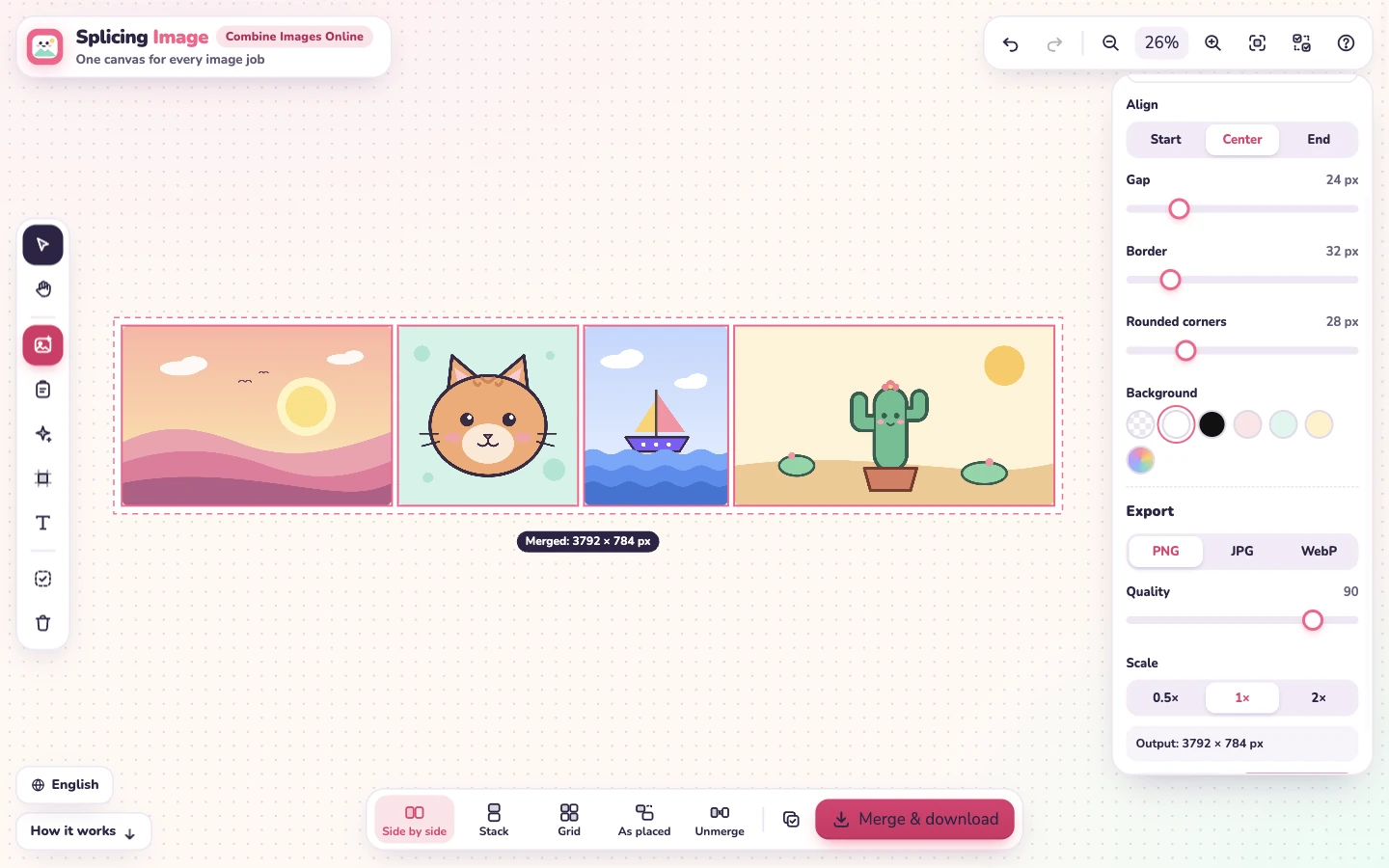
Put two pictures side by side, or a whole row of them. Heights are matched so the strip has a straight top and bottom. Good for before-and-after shots and comparisons.
One canvas for every image job
Drop images here
or paste with Ctrl + V · PNG, JPG, WebP, GIF, AVIF, SVG
🔒 Your images stay on your device: kept in this browser, never uploaded.
Done!
Shortcuts
Free image combiner
Splicing Image is a free online image merger. Add PNG, JPG, WebP, SVG or other browser-supported images, select them, then choose Side by side, Stack or Grid to combine them into one picture.
Download your merged image as PNG, JPG or WebP, or copy it as PNG. Crop, resize and batch-edit on the same canvas. Image processing happens in your browser; your pictures are not uploaded.
Drag files onto the canvas, press Ctrl + V to paste a screenshot, or tap Choose images. You can add as many as you like.
Select all, Shift-click, or drag a box around the images. New images you add together are selected for you.
Choose Side by side, Stack, Grid or As placed. Then set the gap, border, rounded corners and background.
Save one PNG, JPG or WebP file, or copy the merged picture and paste it into a chat, email or document.
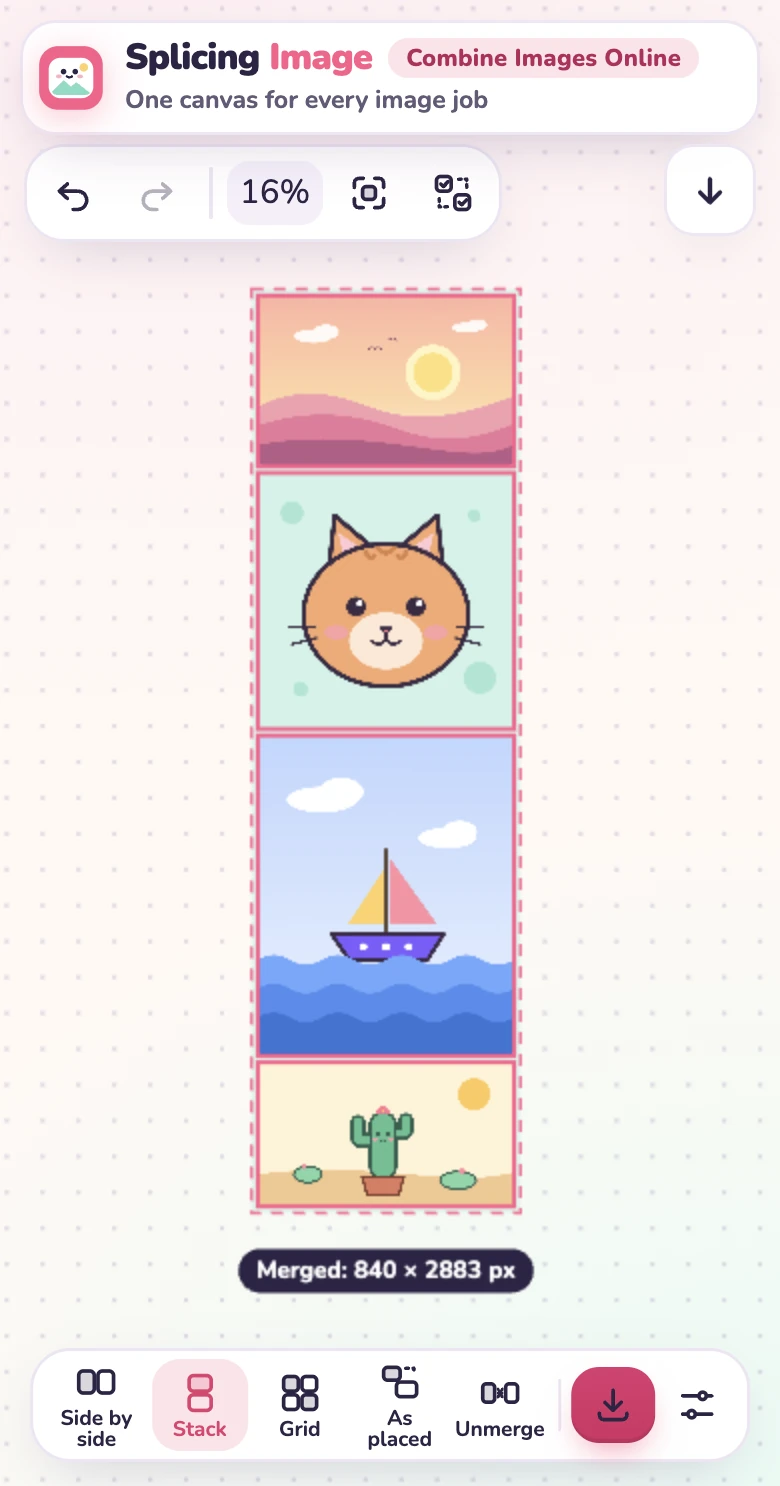
The canvas shows the merged picture before you save it: the dashed frame is the edge of the final image and the label under it shows the exact size in pixels.
Put two pictures side by side, or a whole row of them. Heights are matched so the strip has a straight top and bottom. Good for before-and-after shots and comparisons.
Stack images on top of each other with equal widths. Handy for long screenshots, chat threads and step-by-step guides.
Arrange pictures in 1 to 10 columns. Use 2 columns for a four-photo square, 3 for a nine-photo grid.
Drag images anywhere on the canvas, overlap them, mix sizes. The merged image is exactly what you see inside the frame.
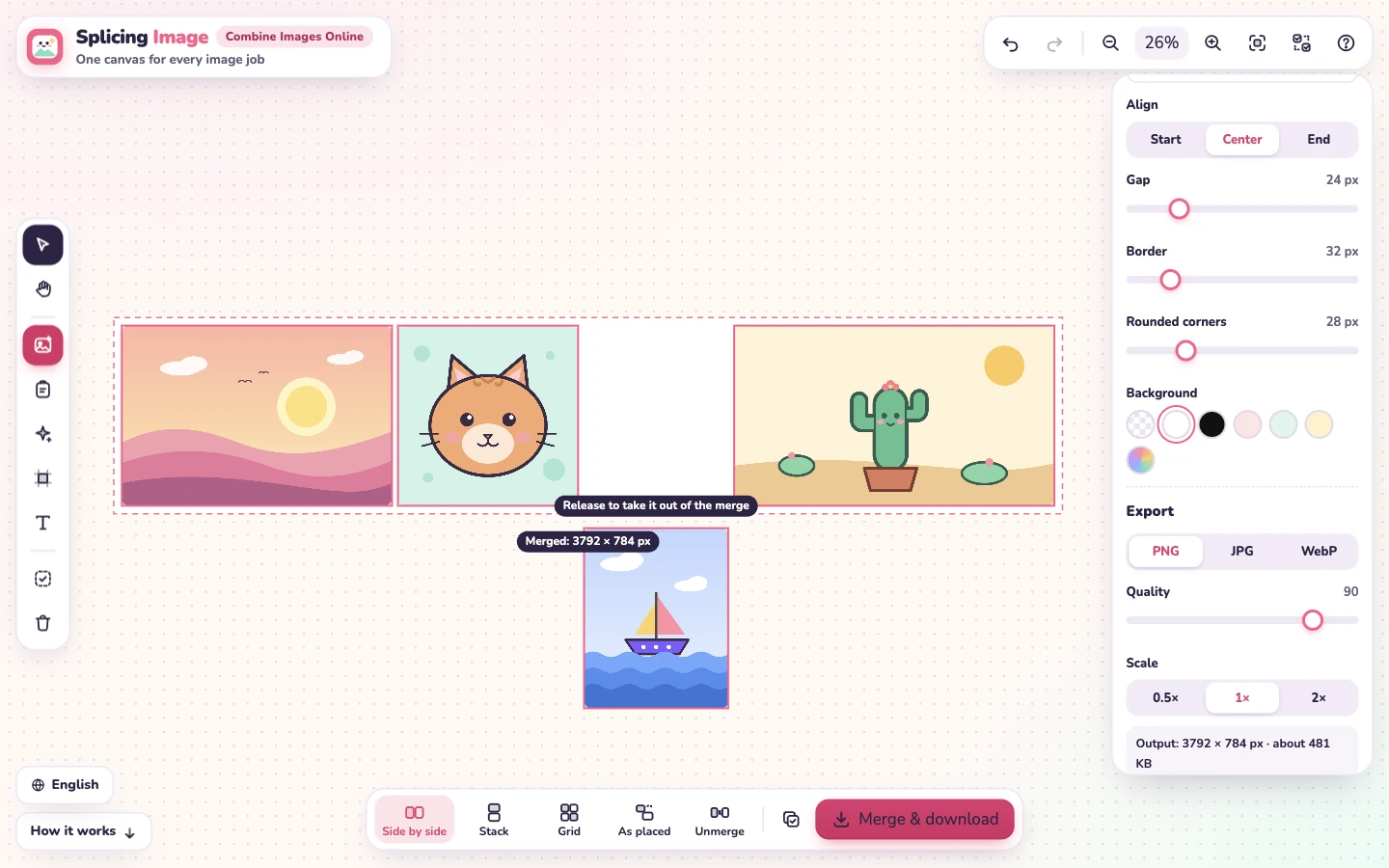
Want a different order? Drag a picture onto another one's spot inside the frame and they swap places. Drag the empty border to move the whole group.
When you combine images, the settings panel controls how they are joined:
While you drag or resize, pictures snap to each other's edges, centers, heights and widths, so rows line up without fiddling.
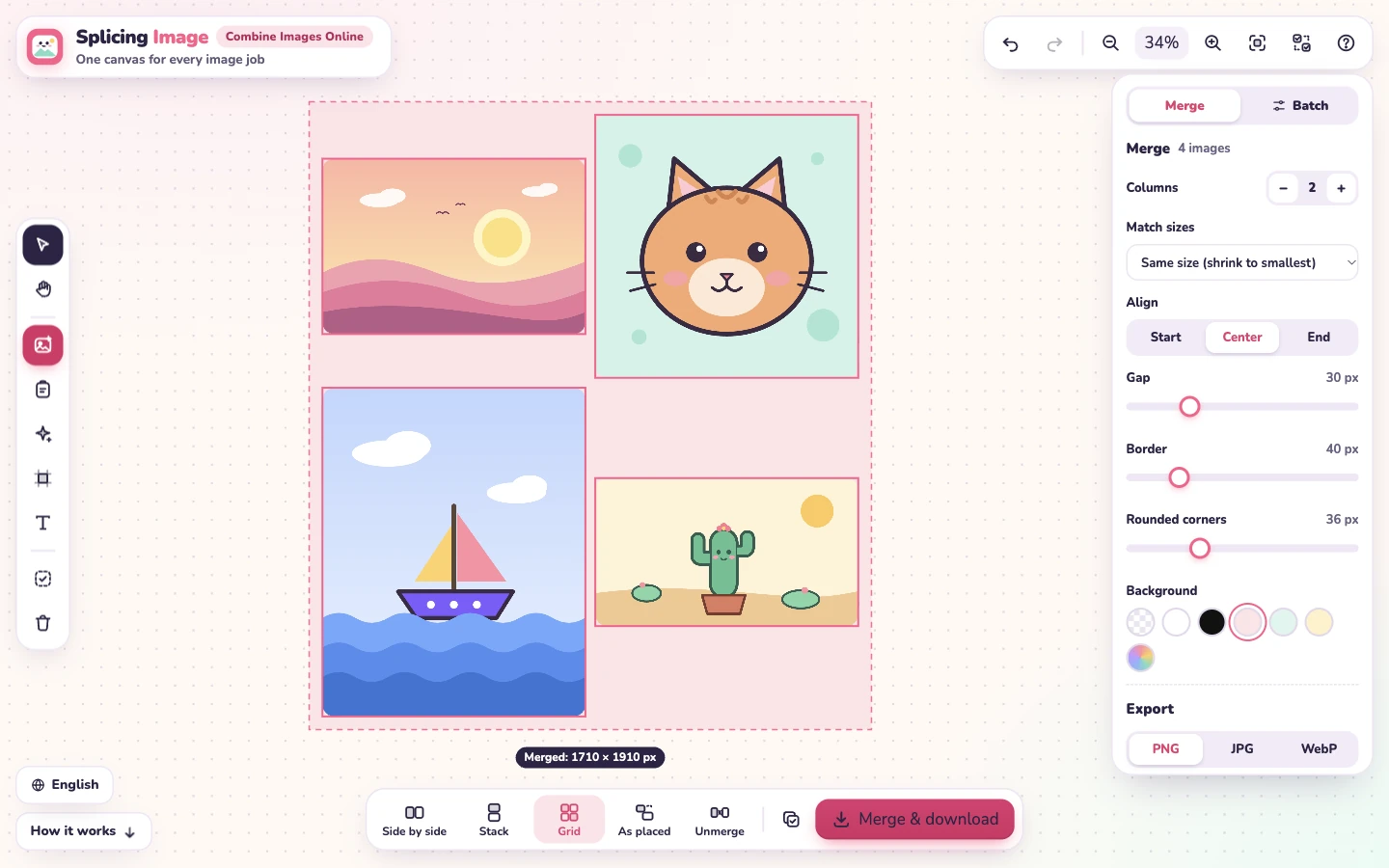
Pictures on the canvas are never glued together. Merging only lines them up, and the single image is made when you download or copy. So you can always take a merge apart again:
Split also works as a quick image splitter for Instagram grids and carousel posts.
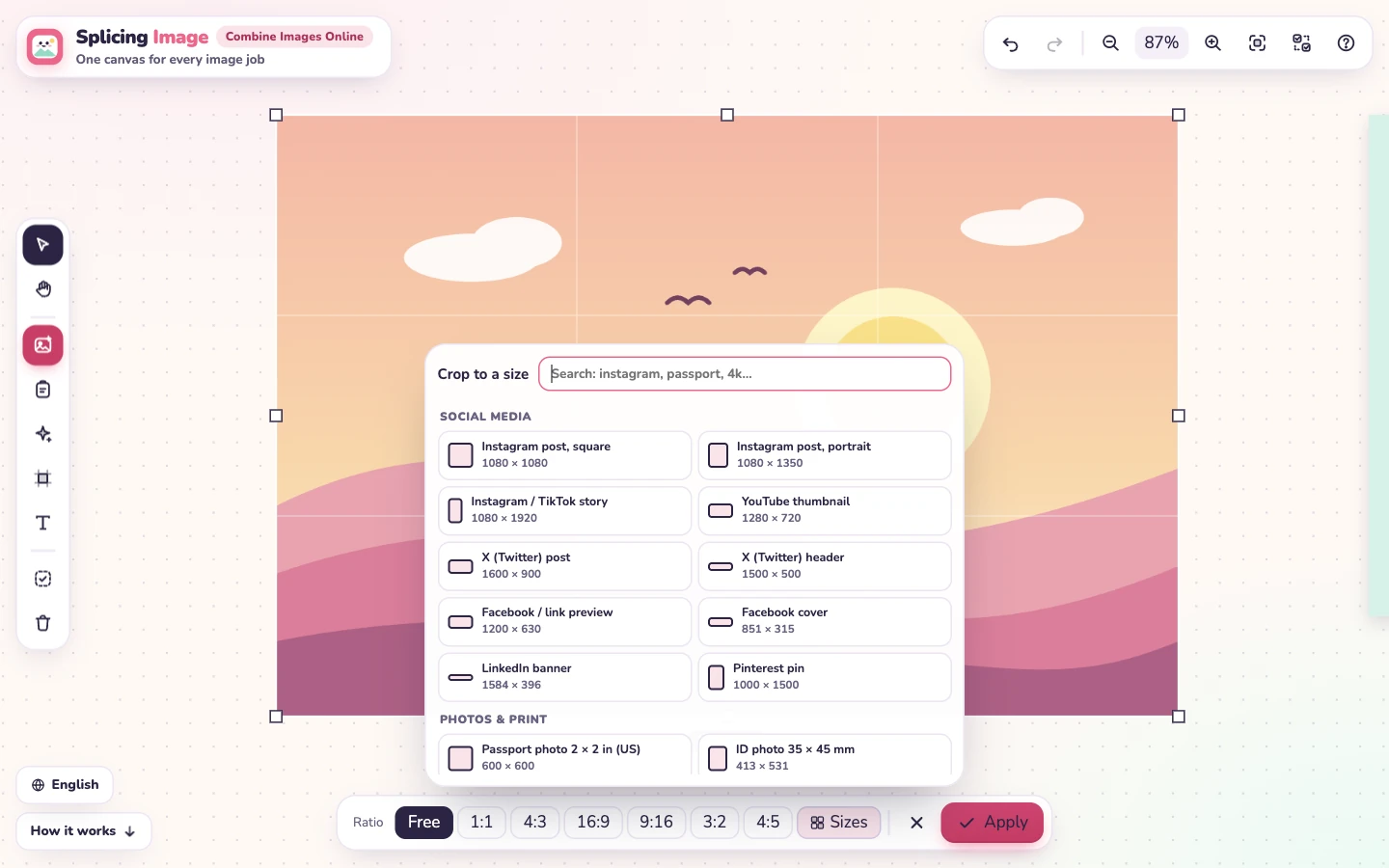
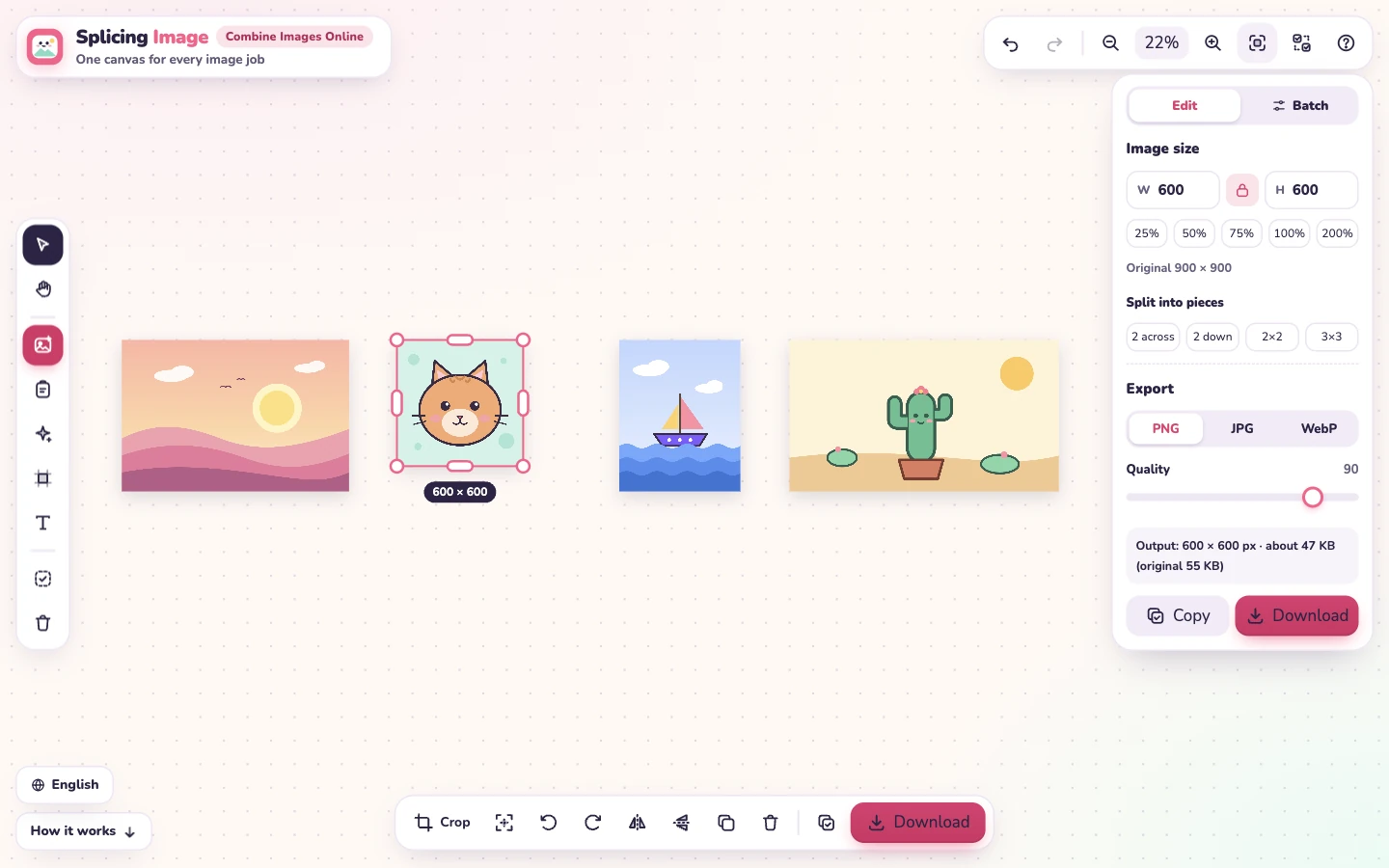
Click one image and the toolbar turns into a small photo editor:
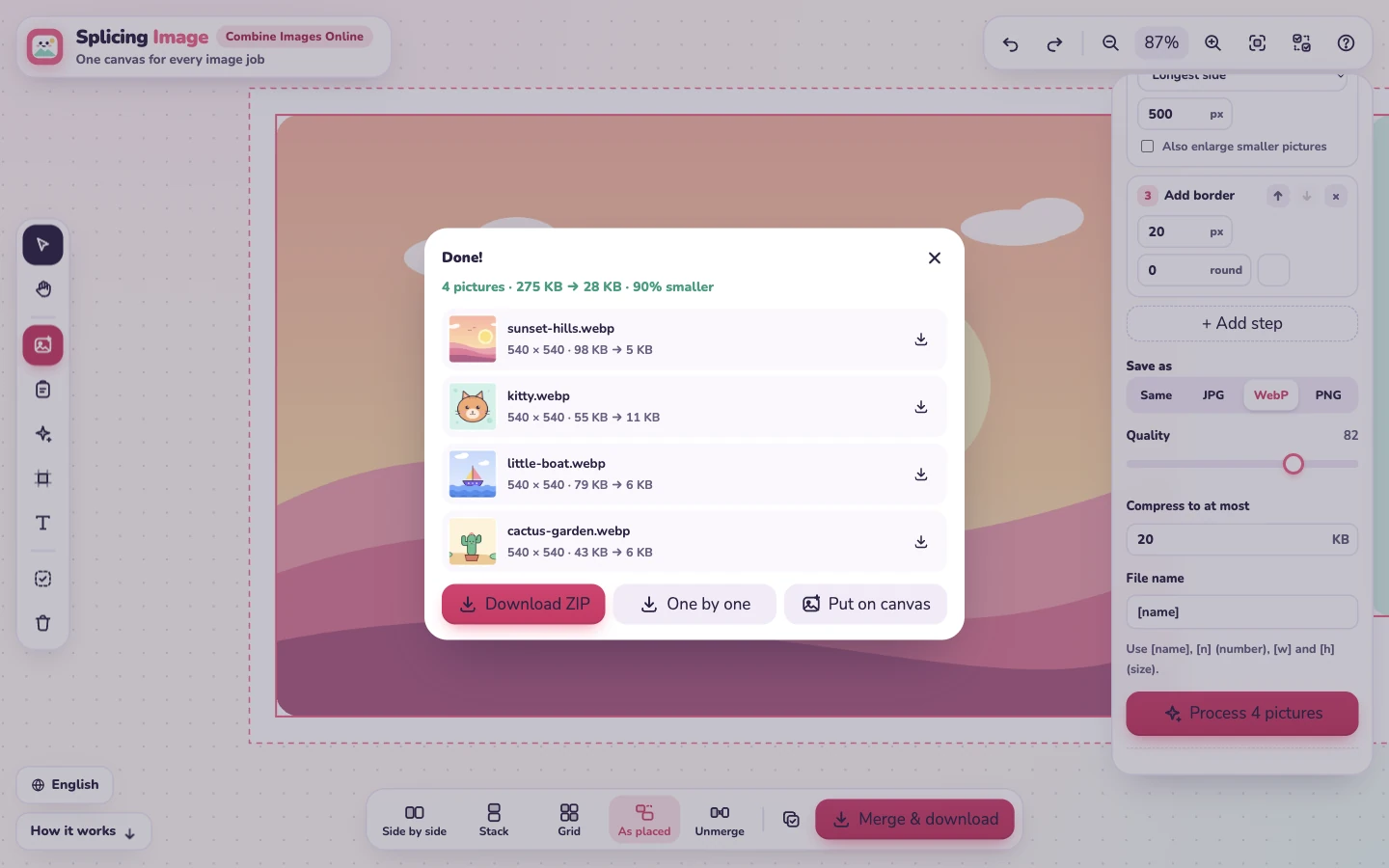
Select a set of pictures and open the Batch tab. Build a chain of steps that runs on every picture, in order:
[name], [n], [w] and [h].The result list shows every picture with its size before and after. Download them all as one ZIP, one by one, or put them back on the canvas and keep going. Your steps are remembered for next time.
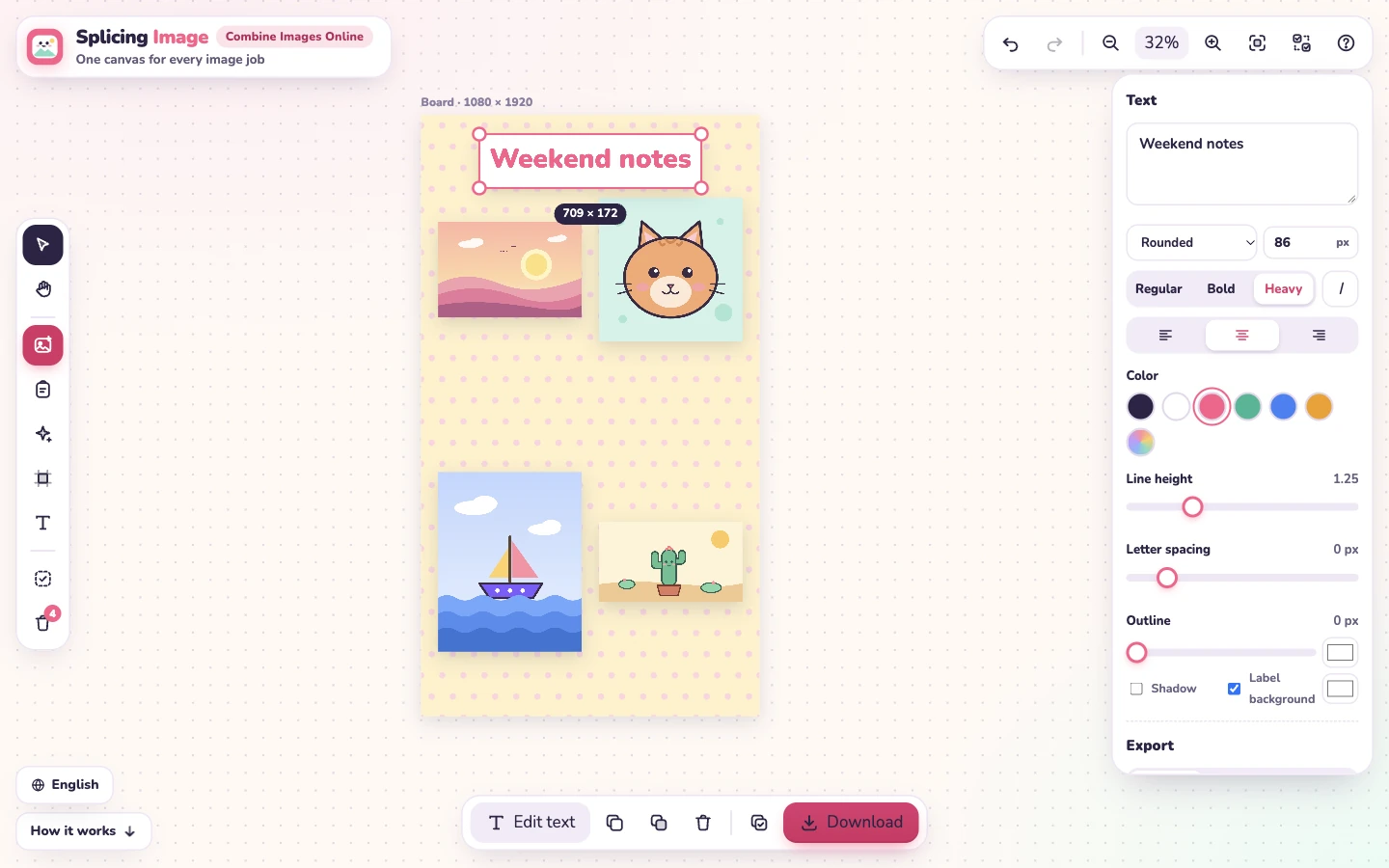
Need a post of an exact size? Press New board to get a blank page, pick a size (story, square post, YouTube thumbnail, A4…) or type one, and choose a background: a color, a pattern (dots, grid, stripes, checkerboard, hearts), a two-color gradient or transparent.
Drop pictures onto the board and they line up inside it; moving the board carries everything on it. Press T to add text, then set the font, size, weight, color, alignment, line height, letter spacing, outline, shadow and a label background. Download the board as one picture when it looks right.
Press Copy (or Ctrl + C) to put the merged image on your clipboard as a PNG, ready to paste into Slack, Discord, WhatsApp Web, Gmail, Google Docs, Figma or Photoshop.
To save a file, pick PNG, JPG or WebP and press Download. The export panel shows the output size and about how big the file will be, next to the original file size, so you can lower the quality or the scale until it is small enough.
Many online image tools send your photos to a server, process them there and send the result back. Splicing Image does not. Files you drop, paste or choose are opened by your own browser, drawn on a canvas on your own device and saved from there.
Your canvas is kept in this browser's own storage, so if you close the tab or reload, your pictures and layout are still there. Deleted pictures go to the trash first, where they wait for 30 days, so a slip of the finger is easy to undo.
Yes. You can combine images, crop, resize, compress and batch-edit them for free, with no sign-up and no watermark on the result.
No. Your images are opened and merged by your browser on your own device. They are not sent to a server.
Add both images, press Select all and choose Side by side or Stack. Then press Merge & download to save one file, or Copy to paste the combined image somewhere else.
Images on the canvas stay separate even when they are merged, so press Unmerge to spread them apart, or drag one picture out of the merged frame. If you already saved a merged file, right-click it and choose Split into pieces.
Yes. Select them, open the Batch tab, add steps such as Resize or Crop to size, choose a format and an optional maximum size in KB, then download everything as a ZIP.
There is no fixed limit. Very large results are scaled down automatically to the biggest size your browser can create, and the saved size is shown when you download.
Anything your browser can display: PNG, JPG, WebP, GIF (as a still picture), AVIF, BMP and SVG. HEIC photos open only in browsers that can show HEIC, such as Safari. You can save as PNG, JPG or WebP.
Yes. Choose the transparent background and save as PNG or WebP. JPG has no transparency, so the background becomes white.
Yes. The canvas is saved in your browser's local storage on this device, so your pictures and layout come back when you open Splicing Image again in the same browser. Deleted pictures wait in the trash for 30 days; empty the trash to remove them for good.
Yes. Tap Choose images to pick photos, tap a picture to select it, drag with one finger to move it and pinch with two fingers to zoom. Press and hold for the menu.
Ready to combine images? Drop your first picture on the canvas.
Combine images now